
Video Editor & Maker - InShot
InShot Video EditorPhotography
4.8238.33K Reviews
- Version
- 2.243.1555
- Installs
- 500.00M
- Age Rating
- Everyone
Screenshots
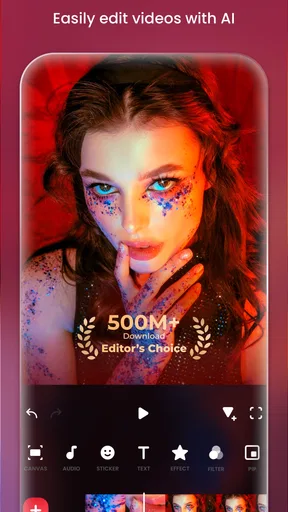
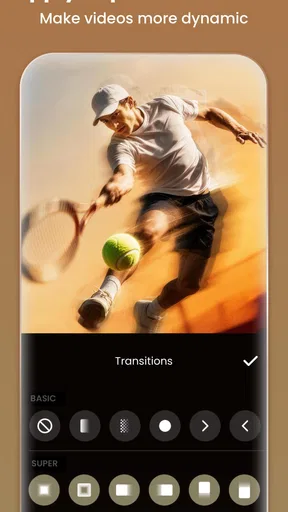
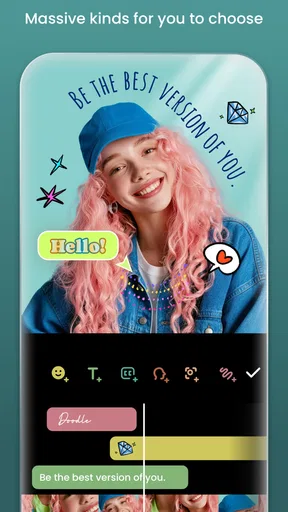
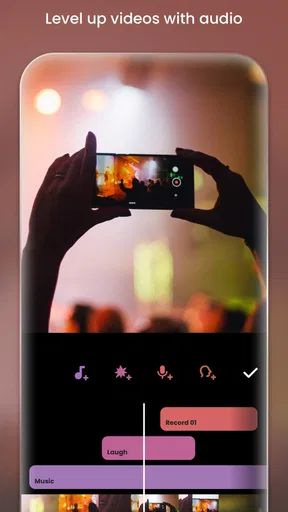
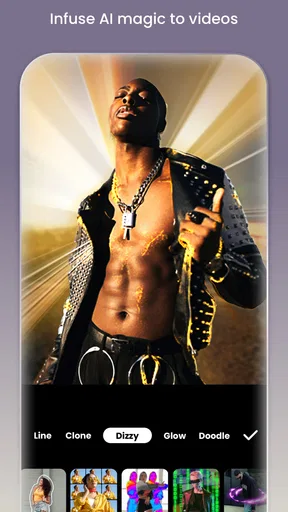
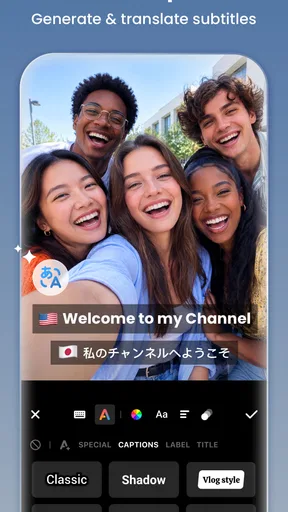
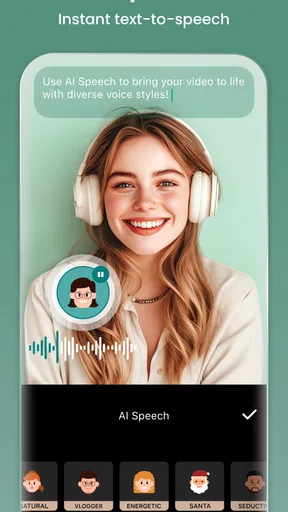
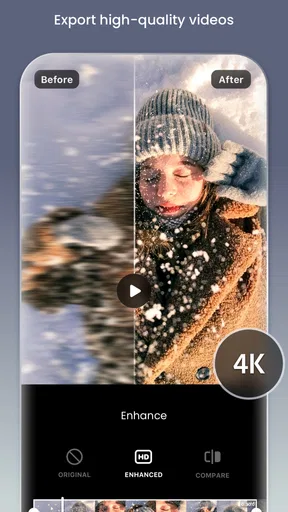
Our Review of Video Editor & Maker - InShot
 Analysis by Appyee
When I choose a phone video editor, I care less about having every possible control and more about how quickly I can turn a handful of clips into something clear and watchable. I also want to know whether it can handle the little finishing jobs—captions, music, framing and pacing—without sending me through a complicated desktop-style workflow. Video Editor & Maker - InShot is aimed at that practical middle ground: approachable enough for a quick social post, but with more creative options than a basic trim-and-share tool.
That balance is the main reason I’d consider it. I wouldn’t pick a mobile editor expecting the precision of a full desktop suite, and I don’t think InShot is trying to replace one. I’d reach for it when I want to make a short clip feel intentional, adapt one edit to different viewing shapes, or add a little personality without spending an evening learning a new program.
A useful fit for everyday video projects
The app makes sense for people who regularly capture moments on a phone and want to shape them before sharing. Think of a family outing with several short clips, a quick recipe demonstration, a small business’s behind-the-scenes post, or a travel recap assembled during a quiet moment at home. The appeal is not that every result will look like a production-house project; it’s that the route from raw footage to a coherent little story can stay manageable.
One practical workflow I like is to decide the final destination before editing. If I’m making a vertical story, I choose that framing early, then check that faces, signs and important action remain visible as I trim. If I’m making a wider video, I review the same shots in that shape rather than assuming a crop will work later. InShot’s aspect-ratio options help with this, but they don’t remove the need to compose thoughtfully: a subject near the edge can still be cut off when the frame changes.
That is a useful distinction for first-time editors. A ratio setting changes the canvas; it does not magically create missing picture around a shot. I’d preview the opening, middle and ending after changing formats, especially when the clip contains text in the scene or people moving across the frame. A few seconds spent checking can save an otherwise polished edit from an awkward crop.
Small editing choices that make a bigger difference
It’s tempting to start with filters and effects, but I get better results by trimming first. Remove dead time at the beginning and end, then place the clips in a sequence that makes sense even with the sound off. After that, I’ll test music and transitions. This order keeps decoration from hiding a pacing problem, and it makes it easier to tell whether a transition is helping or merely drawing attention to itself.
For captions, I’d keep each line short and put it where it won’t cover the action. Stickers can be fun for a casual clip, but too many competing graphics make the video harder to follow. A simple title, one clear caption style and a restrained use of effects usually feel more considered than using every option in the tray. This is especially useful for a quick instructional video, where viewers need to see the hands or object being demonstrated.
Music is another place where a little restraint pays off. I’d listen through the full edit after adding a track, not just the first few seconds, because a song that suits the opening may feel wrong once the mood or pace changes. If spoken audio matters, I’d check that it remains easy to hear alongside the music. Choosing a track is only part of the job; balancing the overall feel of the edit is what makes the result comfortable to watch.
Getting Started with InShot
First things first, downloading InShot is a breeze. Available on both Android and iOS, it’s super accessible. Once you get it installed, the user-friendly interface is like a warm welcome. You know that feeling when you walk into a coffee shop and instantly feel at home? Yeah, it’s kinda like that.
As soon as you fire up the app, you’re greeted with options to edit your videos, photos, or even create collages. I was itching to get started with a video I shot last weekend, and the app didn’t disappoint. With just a few taps, I was knee-deep in editing magic.
Features That Stand Out
Now, let’s talk features. InShot isn’t just your average editor. It’s packed with tools that make your videos pop. You’ve got everything from basic trims to advanced filters and effects. The best part? It doesn’t feel overwhelming. The app guides you through the process, which is perfect if you’re a newbie like me.
The music library is a sweet touch. You can add tunes from their collection or import your own. I found myself playing around with different tracks to see what vibe fit my video best. And let’s not forget the transition effects – they’re smooth, making your cuts look professional.
Editing Made Easy
One feature that I absolutely love is the text and sticker options. Adding captions or quirky stickers is super easy, and they’re customizable too. Plus, the app supports multiple aspect ratios, which is a lifesaver for creating content for different platforms.
The app also allows you to adjust speeds, so you can create slow-mo effects or speed things up if you’re feeling adventurous. And if you’re worried about those pesky watermarks, InShot offers a way to remove them with a small fee, which is fair considering the value you get.
Who should choose it—and who might not
For someone making a regular stream of short, phone-shot videos, the most useful advantage is having several common finishing tasks together: trimming, visual styling, text, stickers, music and speed changes. InShot is a photography-category app from InShot Video Editor, and its mix of video and photo editing plus collage creation makes it handy when a post needs more than one kind of asset. I’d recommend it to a beginner who wants room to experiment, or to a confident casual creator who values speed over deep technical control.
It is less compelling if your work depends on meticulous multi-track editing, detailed color correction, precise audio mixing or a long, complex timeline. For those jobs, a more advanced editor—especially a desktop option—will usually offer finer control and a better view of a complicated project. A stripped-down social platform editor may be faster if all you need is a disposable clip with a native caption or effect. InShot sits between those choices: more flexible than a bare-bones editor, but not the tool I’d choose for a demanding film project.
There is also a creative trade-off in using templates of familiar mobile editing conventions, such as conspicuous transitions or decorative stickers. They can make a video feel lively, but they can also make different clips look alike. I’d use those options to support the subject rather than let them become the subject. A clean cut often communicates a moment better than a flashy transition, especially in a personal or instructional video.
A realistic routine, from clips to a finished post
Imagine I’ve filmed a few moments from a weekend market: a wide view of the stalls, a close-up of something being made, and a short clip of a friend reacting. I’d first remove camera-start pauses, then order the shots so the viewer understands the place before seeing the detail and reaction. Next I’d choose the intended aspect ratio and check that the important action survives the crop. Only after that would I add a brief caption, try a music option, and decide whether any transition is worth keeping.
Before sharing, I’d watch the entire edit once without stopping. That final pass catches issues that are easy to miss while working: a caption that appears too briefly, music that changes the mood, or a cut that interrupts the action. If the post needs to work without sound, I’d make sure its central idea is still understandable from the visuals and text. This workflow is simple, but it uses the app’s tools in a deliberate order rather than turning editing into a hunt for effects.
One non-obvious tip is to keep an unedited copy of the original clips until I’m satisfied with the finished version. That gives me room to rethink a trim or build a second cut for a different shape without relying on a compressed or already altered export. Another is to make a short test edit before committing to a long sequence: it helps me settle on a text style, pacing and music direction early, so I’m not reworking every clip later.
What to expect around access and spending
InShot is free to download, with in-app purchases ranging from $0.99 to $199.99 per item. The app is rated for Everyone, has an average rating of 4.8 from around 24 million ratings, and has been installed over 500 million times. Those figures suggest broad adoption, but they don’t tell me whether every paid option will be worthwhile for a particular edit. I’d start with the free experience and consider paying only when a specific restriction or feature affects the way I actually work.
The watermark detail deserves a practical note: the original review describes a paid way to remove it, so I’d check the current in-app choice before planning a batch of videos around a particular export workflow. A one-off creator may be comfortable with the free route, while someone publishing often may care more about a consistent, clean finish. The current version is 2.175.1517, and the stated minimum operating system is Android 7.0; on iOS, I’d check compatibility in the relevant app store before installing.
Switching from another editor is usually less about learning the idea of trimming and more about rebuilding habits: where you look for music, how you organize a sequence, and when you add text. I would not move an ongoing project just for the sake of trying a new interface. Instead, I’d test InShot on one small video and compare the time it takes, the crop quality and the final look with my usual method. If I can finish the same kind of post with fewer frustrating steps, that is a meaningful reason to keep it.
Final Thoughts
All in all, Video Editor & Maker - InShot is a solid choice for anyone looking to step up their video editing game without the hassle. It’s intuitive, packed with features, and honestly just fun to use. Whether you’re making a quick Instagram story or a longer YouTube video, InShot has got you covered.
So, go ahead, give it a whirl, and unleash your inner filmmaker. I promise, you’ll be hooked in no time!
My recommendation is more measured than that last burst of enthusiasm: try it if your usual projects are short, visual and made on a phone, and judge it by whether it gets you to a clean result without fuss. I’d skip it as my main editor if I needed intricate sound work or a carefully managed long-form timeline. For everyday clips, though, the combination of approachable controls and enough room to shape the mood makes it an easy app to keep in mind.
Privacy and Permissions
See what permissions an app requests and how it handles your data.
- Photos/Media/Files
- read the contents of your USB storage, modify or delete the contents of your USB storage
- Storage
- read the contents of your USB storage, modify or delete the contents of your USB storage
- Microphone
- record audio
- Wi-Fi connection information
- view Wi-Fi connections
- Other
- view network connections, full network access, control vibration, prevent device from sleeping, Google Play license check, read Google service configuration
Verdict
Strengths of Video Editor & Maker - InShot
- User-friendly interface for beginners.
- Wide range of editing tools available.
- Supports multiple video formats.
- Regular updates with new features.
- High-quality export options.
Limitations of Video Editor & Maker - InShot
- Watermark on free version exports.
- Limited music library in free version.
- Some features require in-app purchases.
- Ads can be intrusive at times.
- No cloud storage integration.
Other Releases by InShot Video Editor
View All
Video Editor, Maker -VideoCook
Video Players & Editors4.8

Video Maker
Video Players & Editors4.8

YouCut - Video Editor & Maker
Video Players & Editors4.8
Similar Picks in This Category
View All
Google Photos
Google LLC4.4

Gallery
Google LLC4.2

Picsart AI Photo Editor, Video
PicsArt, Inc.3.9

B612 AI Photo&Video Editor
SNOW Corporation4.1

BeautyPlus-Selfie Photo Editor
PIXOCIAL TECHNOLOGY (SINGAPORE) PTE. LTD.4.5

Remini - AI Photo Enhancer
Bending Spoons4.1
You May Also Like
View All

Frequently Asked Questions
What are the main features of InShot Video Editor & Maker?
InShot provides a wide range of features for both video and photo editing. Users can trim, cut, and split videos, apply filters, add music and text, adjust speed, and even use transitions. It also offers tools for adjusting video brightness, contrast, and saturation. The app supports exporting in high resolution, making it ideal for content creators.
Is InShot free to use, or does it require a subscription?
InShot offers a free version with basic features and watermark on the exported videos. For access to more advanced features, removal of watermarks, and an ad-free experience, users can opt for InShot Pro, which requires a subscription. Various subscription plans are available, including monthly, yearly, and a one-time purchase option.
Does InShot support all video and audio formats?
InShot supports a variety of popular video and audio formats, including MP4, MOV, AVI for videos, and MP3, WAV for audio. However, some less common formats may not be supported directly and might require conversion. It's advisable to check the app's specifications or test with a sample video if you have concerns about compatibility.
Can I use InShot on both Android and iOS devices?
Yes, InShot is available on both Android and iOS platforms. The app provides a consistent experience across both operating systems, allowing users to easily edit videos and photos regardless of their device. However, the availability of certain features might vary slightly depending on the platform and device model.
How user-friendly is the InShot interface for beginners?
InShot is designed with a user-friendly interface that is intuitive for beginners. It features a simple layout with clearly labeled tools and options. Tutorials and guides are available within the app to help new users navigate and make the most of its features, making it accessible for users with varying levels of editing experience.
